Signing in and your account
How you sign up and sign in on careerbot.dev and on a copy you run yourself, choosing your plan, and what Settings, Account shows.
Signing in gives you a workspace that's yours alone: your stories, your record and your search. This step is done as soon as you're in. It's free.
How you sign in depends on where CareerBot runs.
On careerbot.dev
The hosted version may be invite-only, let people in from a waitlist, or be open to anyone. Not invited yet? Sign-in offers the waitlist, with your email filled in. An invite comes as a link, for one email address, and may be emailed to you. It works once and lasts 14 days.
Opening the link shows You’re invited: which Google or GitHub account to sign in with, and what comes with your plan: AI included up to a monthly allowance, its price or no charge, and your record, stories and resumes stay yours. A paid plan is paid in Settings, Account, through Stripe.
- Choose Continue with Google or Continue with GitHub, with the account for the invited email.
- Approve CareerBot on Google's or GitHub's screen. You come back signed in, on Today, with Getting started open.
Because CareerBot's own AI is included, there's no OpenRouter key to add: Getting started goes straight from signing in to your first story, and on to your first resume in one sitting. The Apollo key is optional too; choose Skip on its step and add one later in Settings, Connections.
If the link says the invite has expired, was withdrawn or has been used, ask the person who invited you for a new link. A newer link replaces the old one. If you already signed up, sign in as usual: once you have an account, you don't need the invite again.
If you sign in with a different account than the invited one, you see That isn’t the invited account; choose Try another account.
Signing up when it's open
When careerbot.dev is open to everyone, anyone can sign up from the pricing page:
- On Pricing, choose the plan you want, for example Choose AI included.
- The sign-up page shows your plan and its price. Choose Continue with Google or Continue with GitHub.
- You go straight on to Stripe's secure checkout for the plan. Once it's paid, you're back on Today with Getting started open, and CareerBot's AI is ready.
If you leave the checkout, or sign up without choosing a plan, Getting started opens on Choose your plan: Pay for the plan you're on, or Choose another. CareerBot's AI starts once your plan is paid. You can also add your own OpenRouter key, if your plan allows one. Change your card, see receipts or cancel any time in Settings, Account, with Manage payment.
careerbot.dev's plans have no free trial: during the limited beta, people come in by invitation, and their invitation says what AI it includes. If a plan ever offers a trial, it's one per person: an email that has had one, however it's written, or a Google or GitHub account that has, even on an account since deleted, starts paid.
Without a card on file (a paid plan or a free trial), CareerBot's AI needs a verified email. An email you sign in with through Google is verified. With GitHub, CareerBot uses your public GitHub email, or your primary one if you have none, and it counts as verified when GitHub has verified it. If it isn't, verify it with GitHub and sign in again, choose a paid plan, or add your own OpenRouter key. See Budgets and costs.
Signing in without an invite while careerbot.dev is invite-only says so: "The hosted version of CareerBot is invite-only while we test it. Sign in with the account you were invited with."
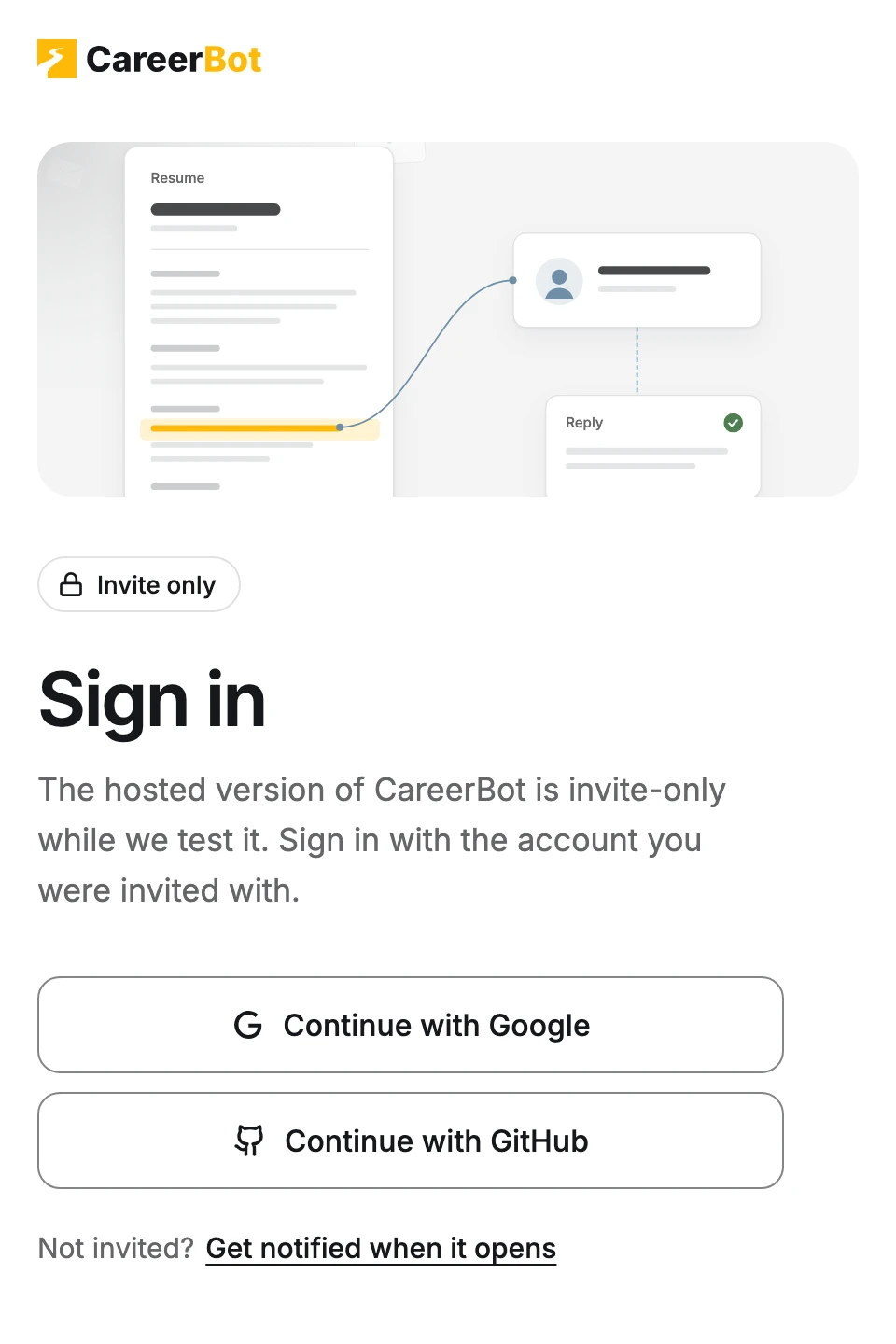
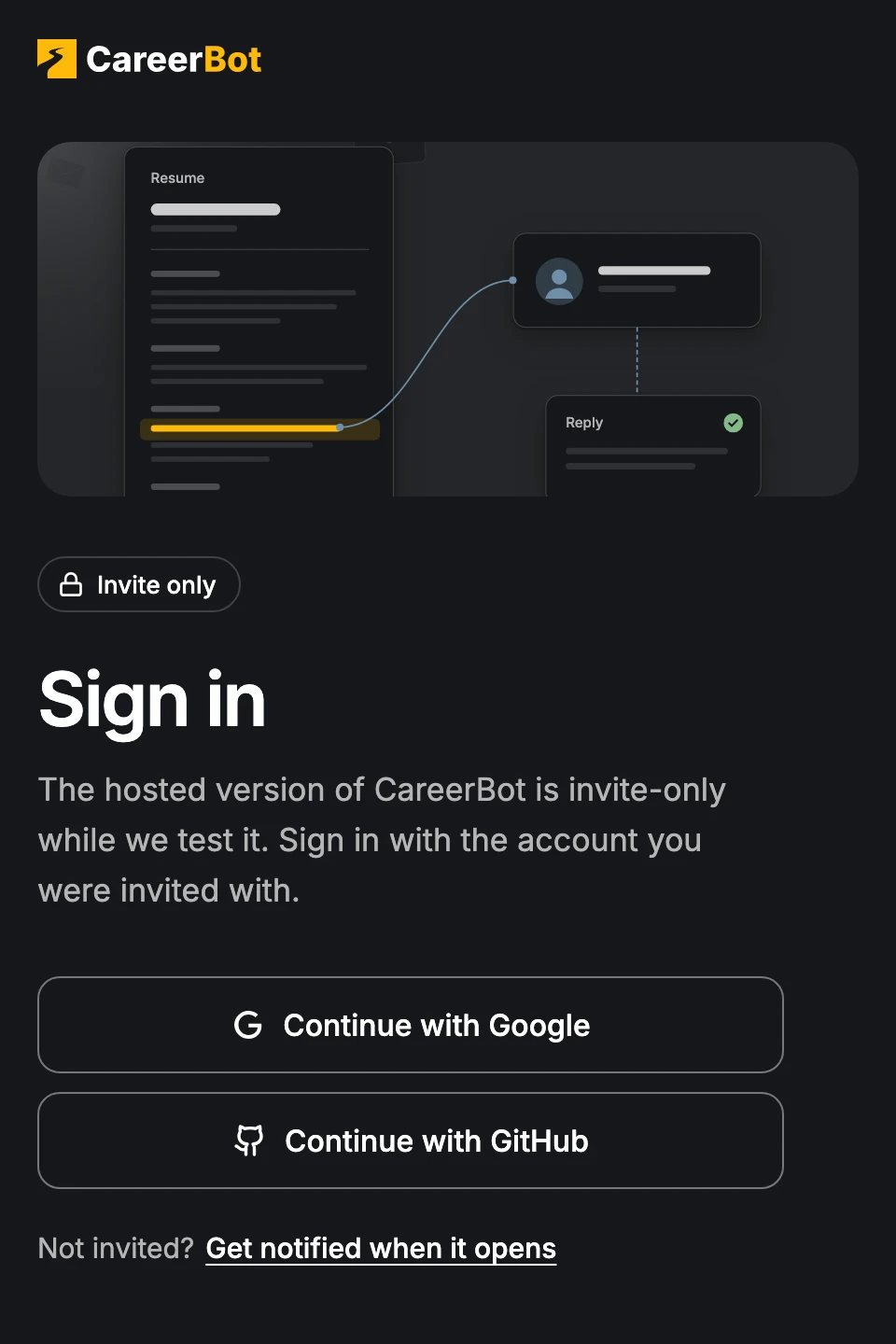
If the account you used isn't invited, you see This account isn’t invited yet, with a waitlist form that has the account's email filled in. Join it, or choose Try another account to sign in with a different one.
If the sign-in itself fails, the page says "Sign-in didn’t work. Try again."
On a copy you run yourself
A self-hosted copy signs in with a username and a password. There's no email involved, so accounts work like this:
The first account: the owner
The first person to open a new copy sees Create your account: "The first account here owns this copy of CareerBot, and decides who else can sign in."
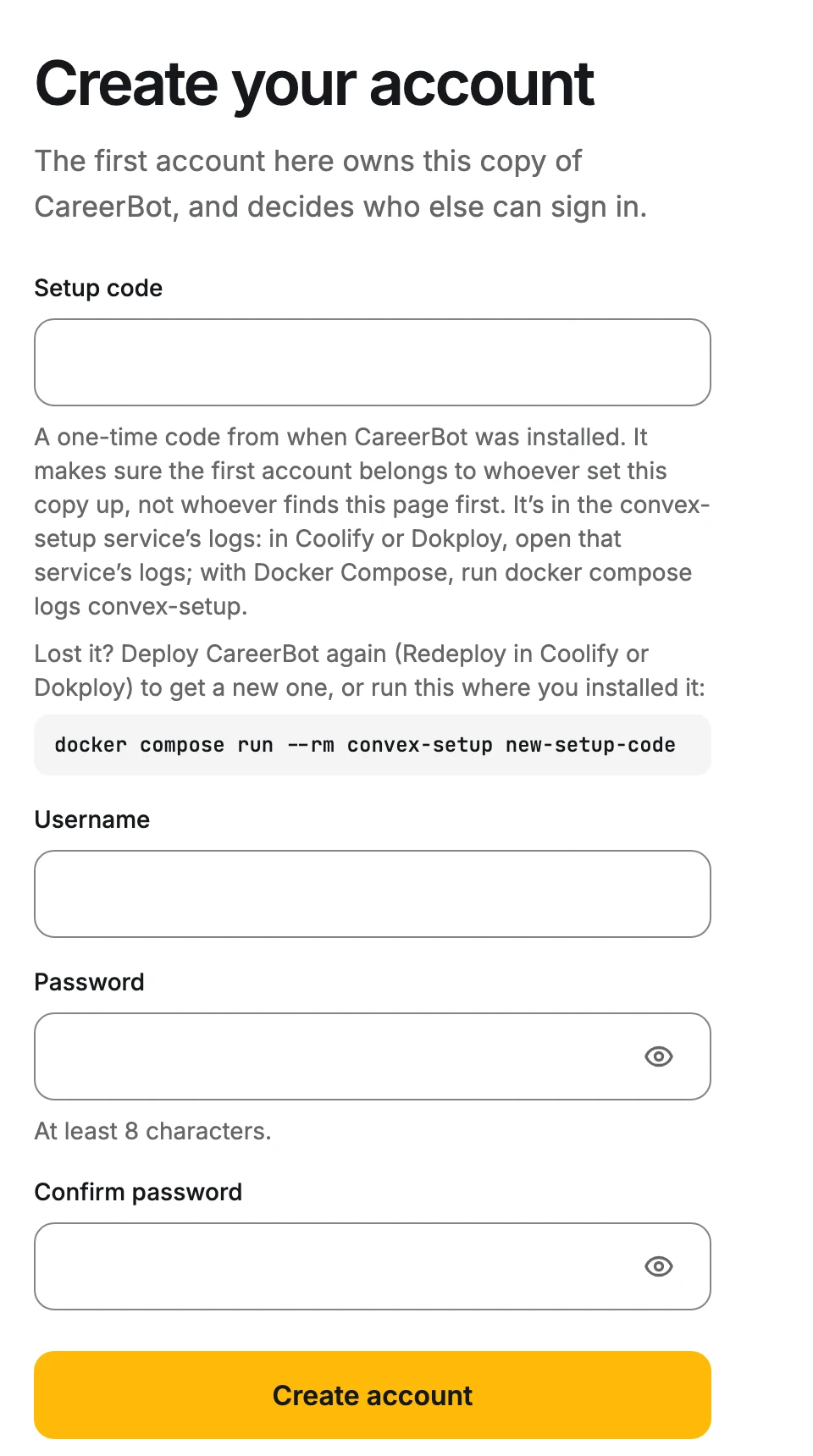
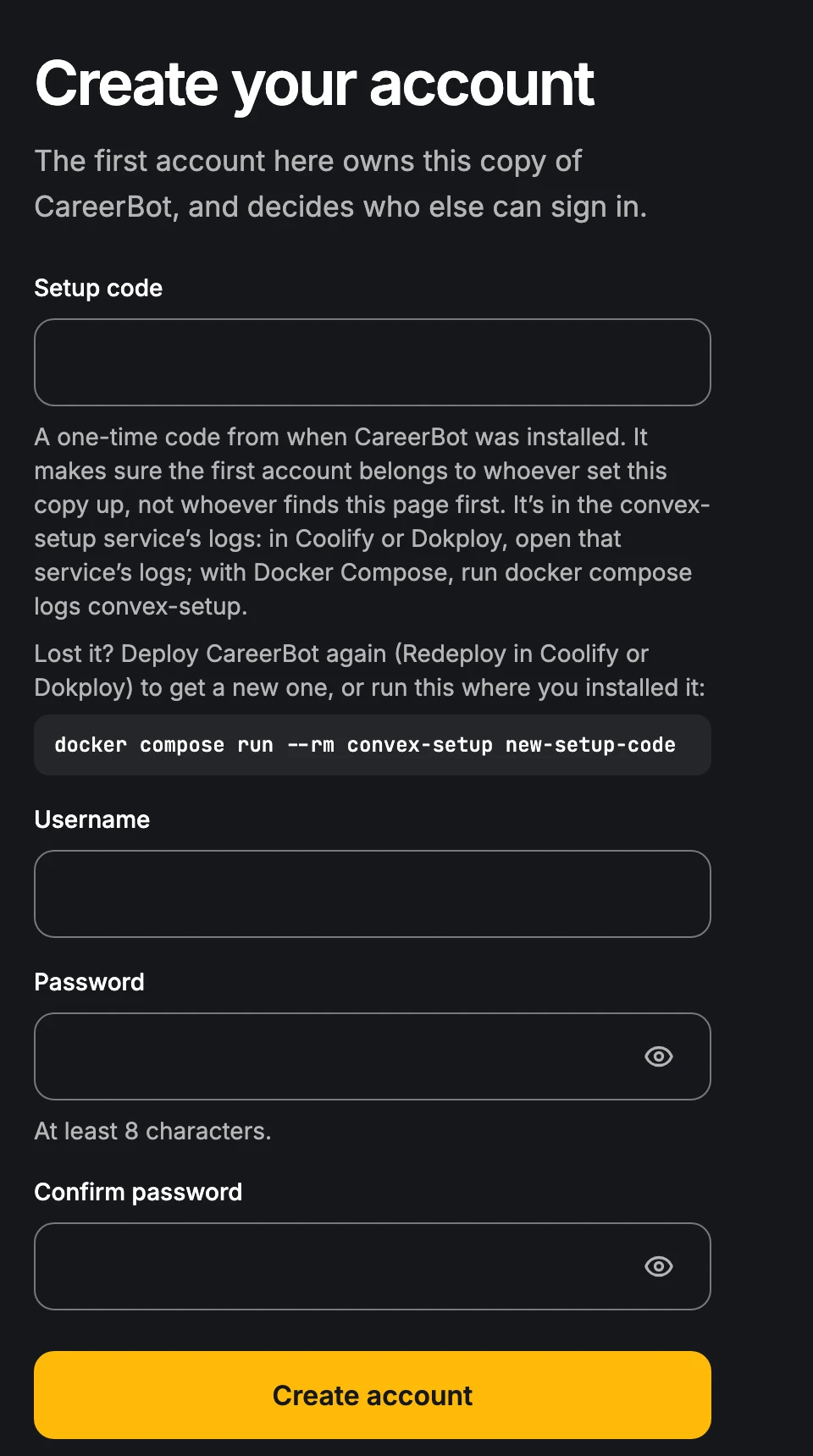
- Enter the Setup code. It's a one-time code printed when CareerBot was installed, so the first account belongs to whoever set the copy up, not whoever finds the page first. It's in the logs of the setup service; the form tells you where to look. Lost it? The form shows the command that makes a new one. See Sign-in and who can join.
- Choose a Username and a Password (at least 8 characters), and type it again under Confirm password.
- Choose Create account. You're signed in as the owner. After this, only the owner can add people.
Everyone else: added by the owner
The owner adds people in Settings, Account, under People, with Add a person. The owner chooses the username and gets a temporary password to give that person.
When you sign in with a temporary password for the first time, you see Choose a new password. Enter it twice and choose Save and sign in. The temporary password stops working.
Forgot your password
Choose Forgot password? on the sign-in form. Passwords on a self-hosted copy are reset by its owner:
- If someone else runs the copy, ask them to reset it in Settings, Account. You'll sign in with the temporary password they give you, then choose your own.
- If you run it, the page shows a command to run where you set CareerBot up. It prints a temporary password for you.
Google or GitHub on your own copy
A self-hosted copy can also offer Continue with Google and Continue with GitHub, if whoever runs it sets them up. Those buttons only let in the email addresses the owner has listed. If yours isn't listed, you see This account can’t sign in to this copy; ask the owner to add you. See Sign-in and who can join.
Your account in Settings
The step's link, Change, opens Settings, Account. It shows your name or username, your email, what you Signed in with, and your Workspace.
- Sign out signs you out on this device and clears anything you were writing here that isn't saved.
- On a self-hosted copy with a password, Change password asks for your current password and a new one. Your other devices are signed out.
- The owner of a self-hosted copy also sees People: who can sign in, each with a workspace of their own. From there the owner can Reset password for someone (they get a new temporary password and are signed out everywhere) or Remove them, which deletes their account and their workspace with everything in it. Both can't be undone. Anyone, the owner included once they're the only one left, can delete their own account in Settings, Your data.
Next
OpenRouter keys and your AI budget.
Edit this page on GitHub