Sign-in and who can join
The setup code, the owner account, adding and removing people, temporary passwords, and Google or GitHub sign-in.
A copy you run yourself has no sign-up page and sends no email. People sign in with a username and password:
- The first account is the owner's, made with a setup code from the install.
- After that, sign-up is closed. The owner adds people in Settings, Account, and gives each a temporary password.
- Google and GitHub sign-in are optional, for the emails you list.
Each person gets a workspace of their own: their stories, record, resumes and pursuits aren't shared.
The setup code
The setup step prints a setup code on every run until the owner account exists:
Setup code: 7KQ4-M2XD
Where to find it:
| Where it runs | Where the code is |
|---|---|
| Docker Compose | docker compose logs convex-setup |
| Coolify | Runtime Logs > the convex-setup-… service (Coolify) |
| Dokploy | Logs > the …-convex-setup-1 container > search Setup code (Dokploy) |
| Without Docker | npx convex run account:newSetupCode |
How it works:
- Eight characters, shown as two groups of four. Case, spaces and dashes don't matter when you type it, and O, I and L count as 0, 1 and 1.
- It works once, and only until the owner account exists.
- Only the newest code works. Each deploy (or
docker compose up -d) while there's no owner makes a new one, and the earlier one stops working. - After 10 wrong tries, it stops working: "That setup code was tried wrongly too many times and no longer works. Make a new one with the command below."
A new code at any time, while there's no owner:
docker compose run --rm convex-setup new-setup-code
Once the owner account exists, it makes none and answers "This copy already has its owner account (wren), so it needs
no setup code.", with the reset-password command for that username.
Create the owner account
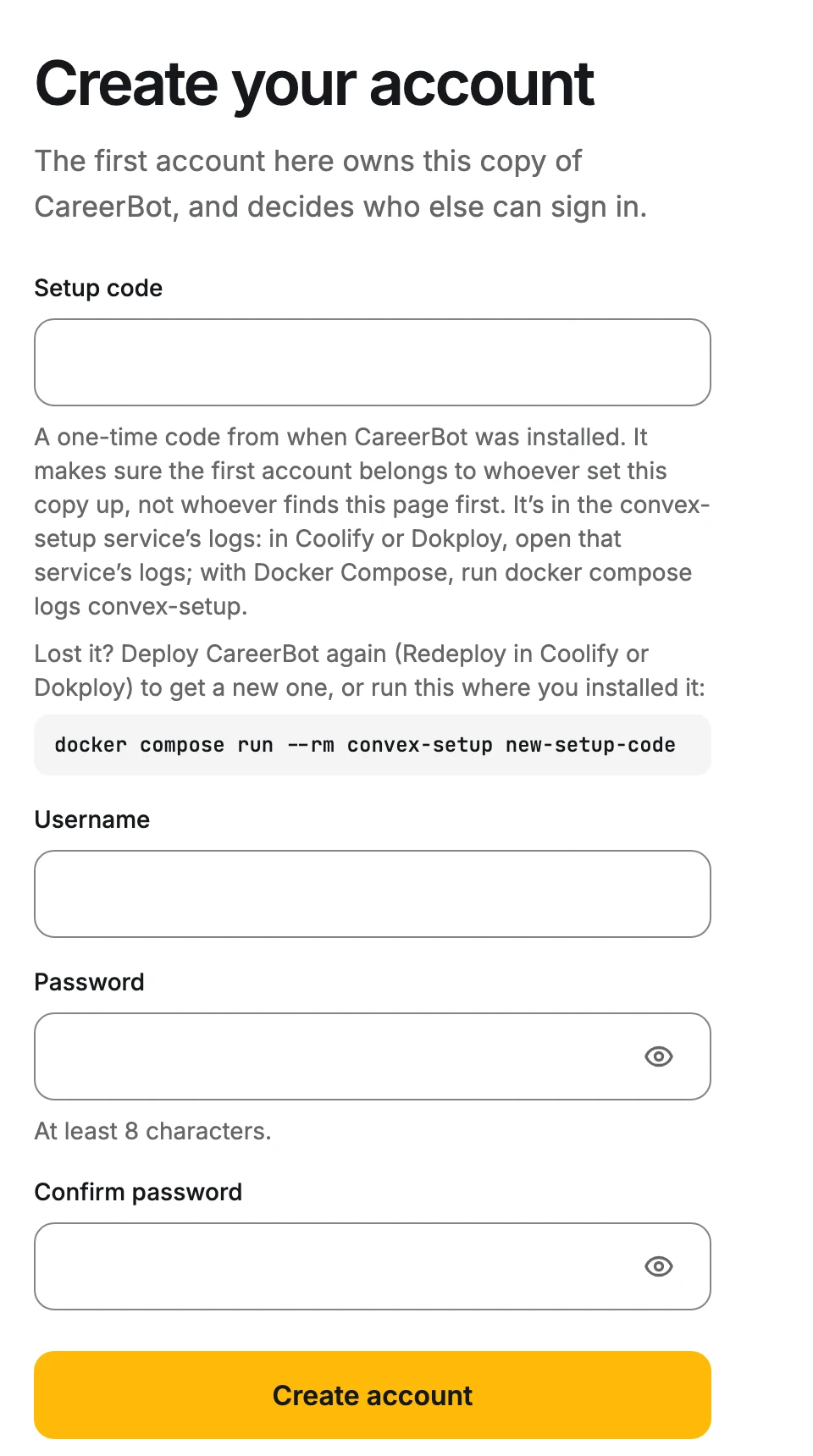
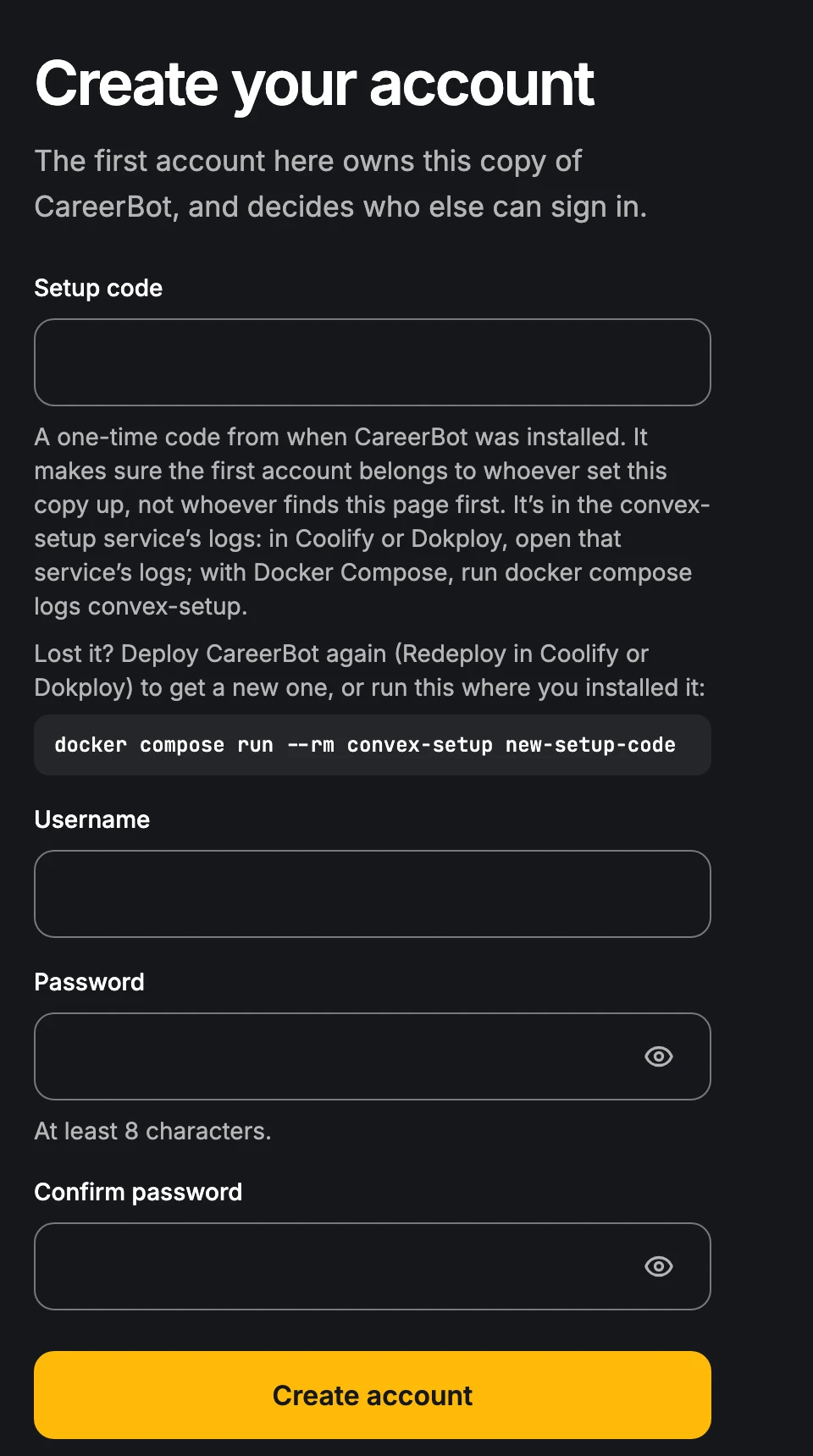
Open the site. With no owner yet, it shows Create your account: "The first account here owns this copy of CareerBot, and decides who else can sign in."
| Field | Rule |
|---|---|
| Setup code | The newest code from the install |
| Username | 2 to 32 letters, digits, dots, dashes or underscores, starting with a letter or digit. Kept in lower case: Wren signs in as wren |
| Password | At least 8 characters, at most 200 |
| Confirm password | The same again |
The owner's account is made and you're signed in.
If someone already made it: "This copy already has its owner. Sign in instead."
Signing in
Username and password, then Sign in. A wrong pair gets "That username and password don’t match. Try again, or reset your password."
After 10 wrong passwords for one username in an hour: "Too many wrong passwords for this username. Wait a few minutes and try again, or reset your password." A password reset clears the count.
Adding people
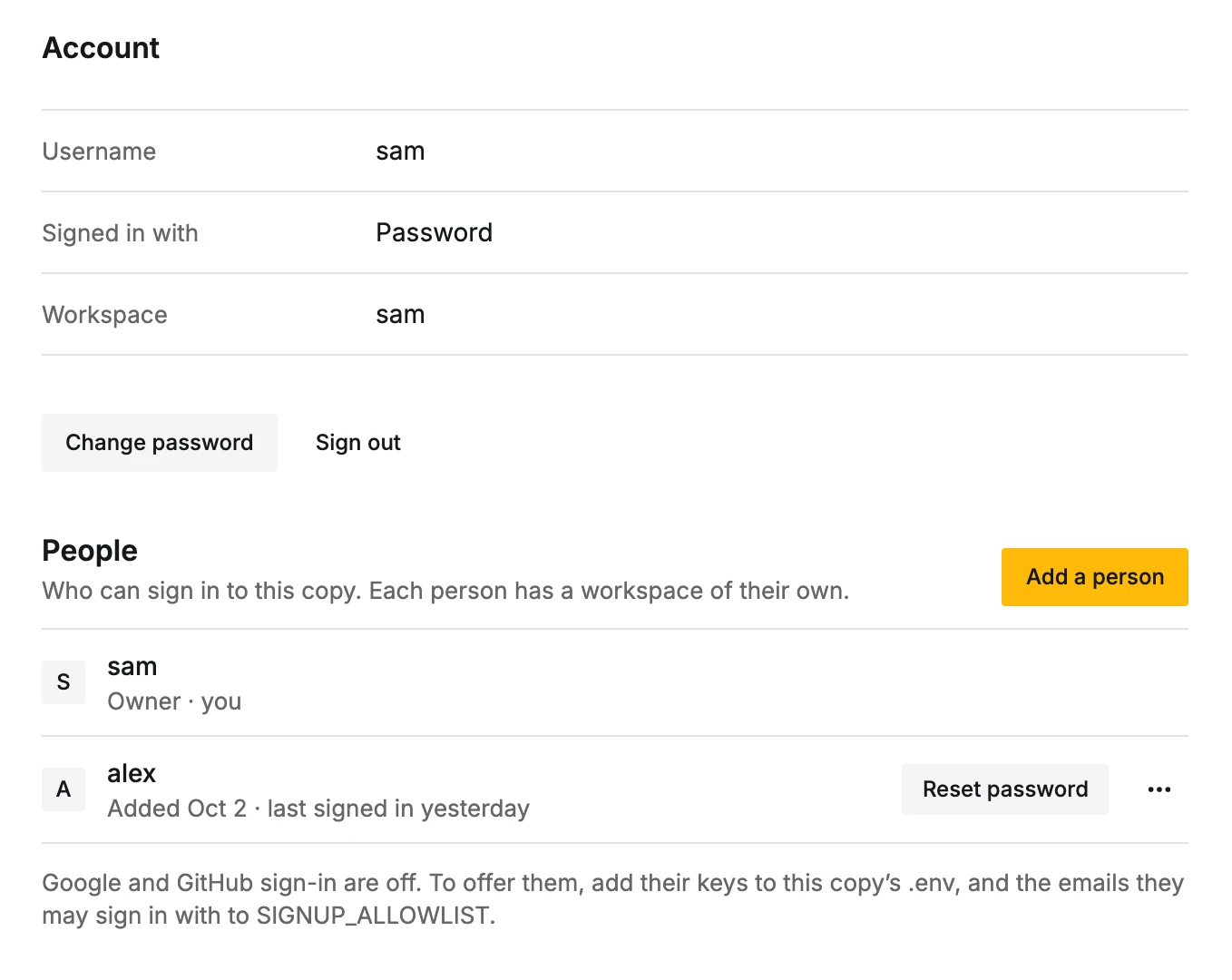
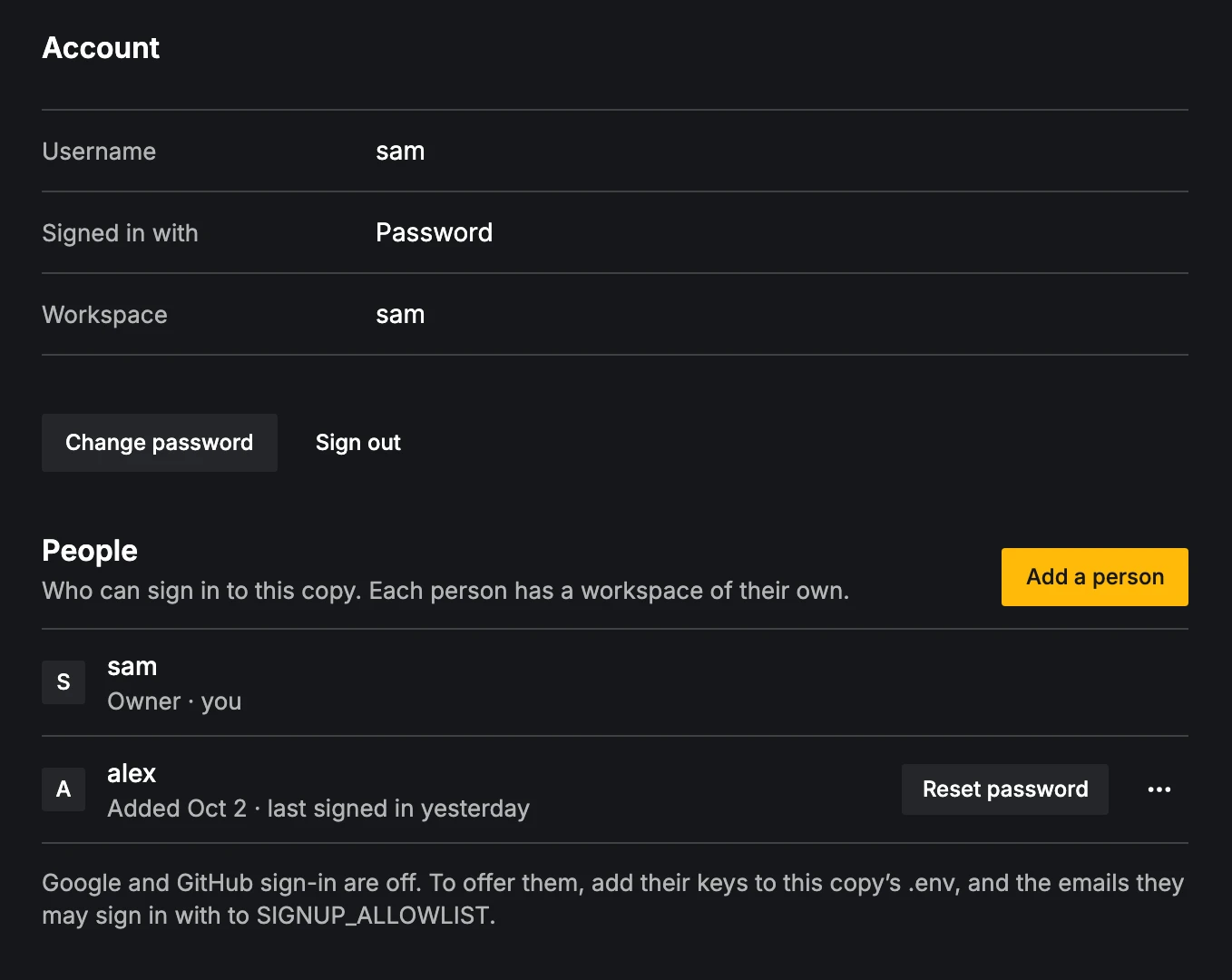
Only the owner sees People in Settings, Account: "Who can sign in to this copy. Each person has a workspace of their own."
- 1
Add a person
Settings > Account > Add a person. Choose their username (same rules as above).
- 2
Give them the temporary password
CareerBot shows a temporary password: two words and four digits, such as
maple-tide-4182. Copy it and give it to them yourself; CareerBot sends nothing. - 3
They choose their own
They sign in with the username and temporary password. CareerBot asks them to Choose a new password ("You signed in with a temporary password. Choose your own to carry on."). The temporary one then stops working. Their workspace is made when they first sign in.
Forgotten passwords
Forgot password? on the sign-in screen explains: "Passwords on this copy of CareerBot are reset by its owner."
Someone else's
The owner resets it: Settings > Account > People > the person > Reset password. They get a new temporary password, their old password stops working, and they're signed out everywhere. You can't reset your own this way.
The owner's
Run this where you set CareerBot up. It prints a temporary password to sign in with:
docker compose run --rm convex-setup reset-password wren
Temporary password for wren: maple-tide-4182

Sign in with it at https://careerbot.example.com. It works once: CareerBot then asks for a password of your own.
Your old password no longer works, and you're signed out everywhere.
On Coolify and Dokploy, run it in the deployment's folder on the server (Coolify, Dokploy). Without Docker:
npx convex run account:resetPassword '{"username":"wren"}'
Or in Convex's dashboard: Functions > account:resetPassword with {"username": "wren"}. An unknown username gets
"No account here has the username …".
Changing your password
Settings > Account > Change password: your current password, then the new one twice. "Password changed. Your other devices are signed out."
Removing people
Settings > Account > People > the person > Remove. It asks first: "Removes [name]’s account and deletes their workspace: stories, record, resumes and pursuits." They're signed out everywhere, their account goes at once, and their workspace is deleted in the background. It can't be undone. The owner can't remove themselves.
Google and GitHub
Optional. Each needs an OAuth app (Keys and accounts) and its two keys in the copy's settings. The sign-in screen offers only the ones that are set.
On a self-hosted copy, Google and GitHub sign in only the emails in SIGNUP_ALLOWLIST:
SIGNUP_ALLOWLIST=wren@example.com,sam@example.com
- Comma-separated emails. Empty: nobody (password accounts don't need it).
- Changes take effect after
docker compose up -d. - An empty value in
.envleaves the one on the deployment as it is. To empty the list, deleteSIGNUP_ALLOWLISTin Convex's dashboard (Settings > Environment Variables).
An email that isn't listed sees "This account can’t sign in to this copy" ("This account can’t sign in to this copy. Ask its owner to add you."). People who sign in with Google or GitHub get a workspace and show in People; the owner can remove them, but there's no password to reset.
Until both keys of one provider are set, People says: "Google and GitHub sign-in are off. To offer them, add their keys to this copy’s .env, and the emails they may sign in with to SIGNUP_ALLOWLIST."
Rate limits
| What | Limit | Then |
|---|---|---|
| Wrong passwords | 10 an hour, per username | Wait, or have the password reset |
| Wrong setup codes | 10 for one code | Make a new code |