Companies
The companies you might work for, found for your directions and rated by you; their open roles feed Pursuits.
Address
/companies
The tour
In ⌘K: Take the tour of Companies. It lights up each part in turn and never changes anything.
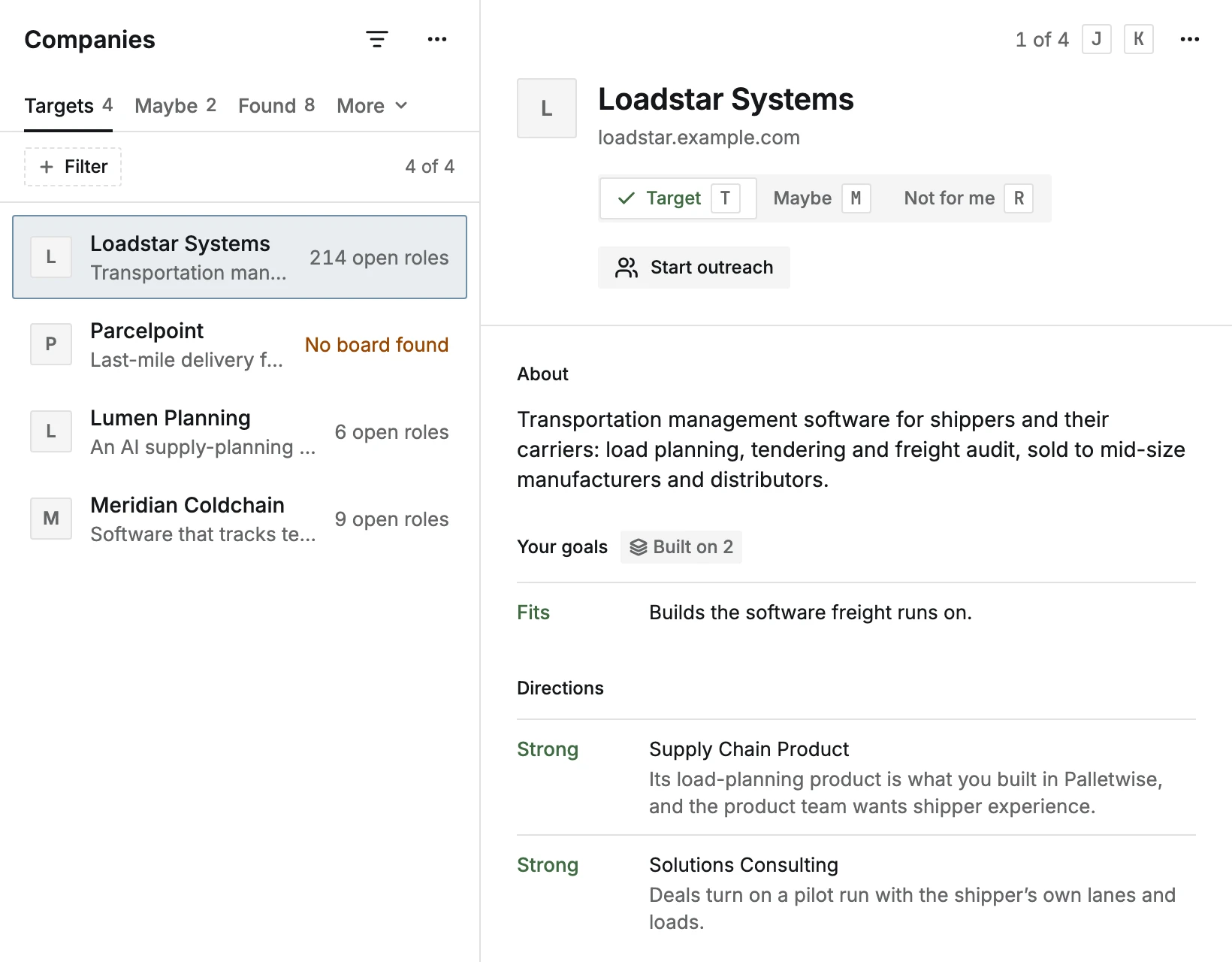
- 01CompaniesThe companies you might work for, found for your directions and rated by you. Companies you rate Target or Maybe have their open roles read into Pursuits.
- 02Targets, Maybe, Found, Set asideTargets and Maybe are the companies you rated. Found holds new ones, best fit first. Set aside holds ones you passed on, ones that don’t fit your goals, and ones that aren’t a place to work. On a row, T rates it Target, M Maybe and R Not for me; J and K move through the list.
- 03FiltersShows or hides the filter bar: by direction, or on Set aside by reason.
- 04Your ratingTarget, Maybe or Not for me for the open company, each at once; U undoes. Not for me with a note, in ⋯, asks why first, so later searches can use the reason.
- 05AboutWhat the company does, read from its website. Fill in details, in the list’s ⋯, reads the ones not filled in yet.
- 06DirectionsHow well the company fits each of your directions, and why.
- 07Open rolesIts best open roles for your directions, ranked. Open one to see it in Pursuits, or all of them from the link below.
- 08DetailsIts website and job board, which you can edit with E, how much of the board has been read, when its roles were read and its fit checked, and the people you know there. Check again reads its board afresh and says what it costs first.
- 09More for CompaniesFind companies shows each search and its Apollo credits before you start one. Here too: Fill in details, Select several and Search settings: companies you like, industries, your goals and your ratings.
Actions
- Edit website and job boardOpens its website or job board for editing.Free
- Open its websiteOpens the company’s site in a new tab.Free
- Let it be set asideMoves it back to Doesn’t fit your goals.Free · Undo with U
- Open its roles in PursuitsShows its open roles in Pursuits.Free
- Open FoundShows the companies found for you.Free
- Start outreachStarts a pursuit at this company without an open role, to write to the people who hire there.Free
- Paste a listAdds several at once: names or websites, one per line or separated by commas. You check each one before they’re added.Free
- Copy listCopies the websites of the companies you like, one per line.Free
- ChangeOpens the companies you like, industries, goals check and ratings these searches use.Free
Companies holds every company CareerBot found for your directions, and your rating of each. The open roles of the companies you rate Target or Maybe are read and ranked into Pursuits.
Layout
The list is on the left, the open company beside it. On a phone the list shows alone and a company opens full screen.
The list has five tabs (the last ones fold into More when they don't fit):
- Targets: companies you rated Target. Their roles are read and ranked first.
- Maybe: companies you rated Maybe. Their roles are read too, ranked after your targets'.
- Found: new companies, best fit first, waiting for your rating. While their fit is being worked out, the filter bar says how many are ranked so far ("Ranking… 19 of 27") (on a phone, a line above the rows), and the ones not ranked yet wait below the rest in Not ranked yet, moving into place as they're ranked.
- Set aside: ones you passed on (Not for me, with your reason), ones under Doesn’t fit your goals, and ones that are Not a place to work (staffing agencies, job boards and others that don't hire for themselves). Each says why. Nothing is deleted: Keep anyway and Restore bring a company back.
- Archived: companies you archived, with the day you did. Each shows the list it was archived from; Restore (A) puts it back there.
Show filters opens the filter bar: by direction, or on Set aside by reason.
Sort by, in the list's ⋯ menu, orders Targets, Maybe, Found and Archived: Best fit (the default), Weakest fit first, Has a job board first (best fit within each; their roles can be read), Newest found or Name. The whole list is sorted, and the choice stays in the address, so a link opens in the same order.
Archive
Archive (A, in a company's ⋯ menu or for the checked rows) clears a company from every list without saying anything about it: your rating stays as it was, nothing is learned from it, and its roles aren't read or shown in Pursuits while it's archived. It's free; U undoes it. That's what sets it apart from Not for me, which later searches learn from. Open Archived (under More when the tabs don't fit) and Restore a company to put it back.
Rate companies
- 1
Go through Found
Move with J and K. Each company shows About (what it does, read from its website), how it fits each of your directions, its Open roles, People you know there, and Details.
- 2
Rate it
Target (T), Maybe (M) or Not for me (R). Not for me sets it aside at once. To say why (Industry, Size, Reputation, Place, Not my work, or your own words), choose Not for me with a note in the ⋯ menu; later searches use the reason, and Change the reason there changes it. Ratings save as you make them; U undoes.
- 3
See its roles
Open roles lists every open role read from its board, not only those that fit: Fit your directions (best score first), Against your limits, Other roles (not the work of your directions) and Waiting to be scored. Each row has its place, when it was posted, and its pursuit or your rating. Open one to see it in Pursuits, where Start a pursuit for starts it for any of your directions. With many roles, search them by title; Show more lists the next 100. Above them it says how much of the board was read: every role, or, for a board too large to read whole (Workday, Oracle, large Eightfold boards), what a search by your directions' titles found, with Open the job board for the rest. A company that isn't a Target or Maybe isn't read every day: Check its roles now reads its board once, free, and lists its roles without scoring them.
- 4
Write to them without an open role
Start outreach starts a pursuit at the company with no open role, for the direction it fits best, and opens its People to write to the people who hire there. It's free. It has no tailored resume or cover letter; your direction's resume goes with the message.
Details and coverage
Under Details are the company's Website and Job board. E edits them; saving reads the company again from the new address. Coverage says how much of the board has been read. Check again reads its board afresh and says what it costs first (Apollo credits or AI budget). Checked says when its roles were last read and its fit last checked ("Roles read today · fit checked Oct 20"). Notes keeps your own notes (N).
Found says which direction each search found it for, and how: from its criteria, as one like a company you like, or by the web search, as one that fits or is hiring now, from a web search or job boards. Where it was seen opens the page the web search saw it on. Until it's filled in, a company the web search found says how in its row ("Fits, web search").
Find more companies
The list's ⋯ menu (More for Companies):
-
Find companies: searches for companies for each direction with approved criteria. With an Apollo key it searches Apollo, and for ones like the companies you like. Without one, a web search finds companies that fit each direction, hiring or not, and ones hiring now, plus public job boards when you've added a Brave Search key. It shows each search and what it costs (Apollo credits, or dollars from your AI budget, and the Brave searches) before you start, and under it what the last search found. Your past employers never come back.
-
Fill in details: reads the website and job board of each company not filled in yet, then how it fits your directions.
-
Sort by: the order of the list (see above).
-
Select (or Select all): shows a checkbox on each row so you can rate several Target together, Archive them, or, in the bar's ⋯, rate them Maybe or Not for me or Check again. X on a row, or ⇧- or ⌘-click, starts selecting with that row checked; ⇧-click checks every row between the last one you checked and this one. On a phone, long-press a row to check it and start selecting, then tap to check more. Done or Esc stops (see Selecting several).
-
Search settings (also Change in Find companies, and ⌘K): one dialog, full screen on a phone, with Back to Companies.
- Companies you like: start typing a company's name (two letters or more) and matches show as you type, your own companies first, then companies from Wikidata, each with its website. It's free: no Apollo credit, Brave search or AI budget. Pick one to add it, or type its website: the name is read from its own homepage (a public https site only).
- Paste a list (beside the search box, or paste several lines into it): names or websites, one per line or comma separated, up to 100. Look them up (free) shows what each line found: a website as it is, a name that matches exactly, or the best match marked Check this; lines with No company found or Already in your list. Fix searches a line again, Remove drops it, and Add N companies adds the rest.
- Every company you like is added to your companies at every search and used to find more like it (with Apollo, about 1 credit for every 100 looked up, and a lookalike search about 1 credit for every 5; without Apollo, the web search names it as one you like, at no extra cost). A row's ⋯ has Don't use to find more like it (the row then says Not used to find more like it; Use to find more like it turns it back on) and Remove, which offers Undo. The list's ⋯, beside its title, has Paste a list and Copy list (their websites, one per line). A direction can add its own in its Criteria, with the same free search.
- Industries you want: Steer, Only these or Ignore.
- Check companies against your goals: Off, Rank or Hide, with Check all again.
- Learn from your ratings.
- Update fit as roles change: when the daily check finds roles matching your titles opened or closed at a company, its fit is checked again, at about a cent for every 40 companies from your AI budget (more).
Change in Settings opens Settings, Connections, for the keys, how companies are found and job postings from Apollo.
Company search needs a direction with approved criteria (see Goals). An Apollo key is optional (see Apollo).
Keys
| Key | Does |
|---|---|
| T | Target |
| M | Maybe |
| R | Not for me |
| A | Archive, or Restore an archived one (the checked rows while selecting) |
| E | Edit the website or job board |
| N | Add a note |
| X | Select the row (starts selecting) |
| J / K | Next / previous |