Pursuits
Your ranked roles and the pursuits you've started, in one inbox, with the tailored resume, letter, answers, contacts and follow-ups for each, on the Apply path, the Outreach path or both.
Address
/pursuits
The tour
In ⌘K: Take the tour of Pursuits. It lights up each part in turn and never changes anything.
- 01PursuitsThe roles ranked for your directions and the pursuits you’ve started, in one place. Open a role to decide on it; start it to track the application.
- 02TabsAll roles lists every ranked role, best first. Interested keeps the roles you marked until you start them. Pursuing holds what’s under way, Closed what has ended.
- 03FiltersDirection shows one direction’s roles and pursuits. On All roles and Interested, + Filter adds more role filters and Clear puts them back.
- 04The listEach row shows the score, the title, the company and place, its status or Interested, and when it was posted. A row’s menu marks it Interested or Not for me without opening it.
- 05Deciding on a roleStart (S) begins a pursuit of the role, free. Interested (I) keeps it in mind. Not for me (R) sets it aside at once, and U undoes; Not for me with a note, in ⋯, asks why first.
- 06A pursuitStatus records where it stands; set Closed with the reason when it ends, and Undo takes a change back. The tabs below hold its Overview, the Role as it was posted, Resume, Letter, Answers, People and Notes.
- 07KeysJ and K move to the next and previous item in the list. Esc closes the one open.
- 08More for PursuitsBy direction shows how your pursuits went for each direction. Select several marks many roles at once; Rank again and Check roles again refresh the list and show what they cost.
Actions
- CopyCopies the answer, to paste into the application.Free
- EditChange the question or the answer.Free
- RemoveRemoves this answer from the pursuit.Free · Asks first · can’t be undone
- KeepSaves this answer to the pursuit's Answers.Free
- CopyCopies the answer.Free
- Copy and open MailCopies the follow-up and opens it in your email, addressed and ready to send.Free
- Keep the new oneKeeps the new version as your draft.Free
- Keep the one I hadDrops the new version; your draft stays as it was.Free
- EditChange the words yourself.Free
- CopyCopies the letter as it was sent.Free
- CopyCopies the letter.Free
- EditChange the words yourself; it's kept as a new version.Free
- PeopleShows your contacts, to write to the next one.Free
- Close · No responseCloses the pursuit as No response.Free · Undo with U
- ChangeWrite your own next step; clear it to go back to the suggested one.Free
- AddAdds them to this pursuit’s contacts.Free
- Mark a replyRecords that this person answered. Moves the pursuit to In conversation if it’s behind.Free · Undo with U
- Clear the replyTakes back that this person answered.Free
- Copy and open MailCopies the message and opens it in your email, addressed and ready to send.Free
- Download resumeDownloads this pursuit’s tailored resume as a PDF to attach to your email.Free
- Mark as sentKeeps the message as sent, on the pursuit's timeline.Free
- By directionShows how your pursuits went for each direction, and where roles come from.Free
- Copy linkCopies a link that opens this role in Pursuits.Free
- StartStarts a pursuit of this role: its status, resume, letter, answers and people in one place.Free
Pursuits is the main screen of a job search. A role is an open job CareerBot found and ranked for your directions. A pursuit is a role you decided to go after: it keeps the status, tailored resume, cover letter, answers, contacts, outreach messages and follow-ups for that one role together.
Layout
On a large screen there are three parts: the list on the left, the open role or pursuit beside it, and, when you ask for it, a third pane with the tailored resume, Ask about this role or a message. On a medium screen the third pane slides over as a drawer; on a phone it is a sheet.
The address keeps what is open, so a link to a role opens it again.
With nothing open, the item side shows By direction: for each direction, how many pursuits were started, contacted, applied to (a pursuit can be both), interviewed, got offers and closed (and why), What stands out, and Where roles come from with each company's job board and Check again.
The list
The tabs:
- All roles: every ranked role, best first.
- Interested: roles you marked, until you start them.
- Pursuing: what's under way. With no tab chosen, this one opens when you have any.
- Closed: pursuits that ended.
On a narrow screen tabs fold into More. Above the list, Direction shows one direction's roles. On All roles and Interested, + Filter adds role filters (score, pay, place, work setup, posted within, company, seniority, years asked, employment type, rating, travel, clearance and visa sponsorship); most can also Include roles that don’t say. Clear puts them back. Posted within counts whole days in UTC: 7 days is today and the six days before it; with no roles that new, the list says No roles posted in the last 7 days (or the days you chose).
Each row shows the fit score, title, company and place, its status or next step, and when it was posted. A role listed in several places is one row. At the end, folded: Against your limits (roles that state pay, a place, a level, travel, a schedule, an employer, a clearance or a visa against a firm limit, each saying which) and Other roles (not the work of your directions).
Decide on a role
- 1
Open it
Read About the job, For you (fit for each direction, with Built on), what it misses of your limits, the Full description and Details.
- 2
Choose
Start (S) begins a pursuit for the direction the role fits best; a role that fits none of your directions asks which one first. It's free. Start a pursuit for, in the ⋯ menu, starts it for any of your approved directions, best fits first; a direction the role wasn't matched to says Not matched, and the pursuit works like any other (resume, letter, people) for it. Score it for, in the ⋯ menu, scores the role for a direction it has no score for: one AI call from your AI budget, its cost shown first, which also writes its For you. Interested (I) keeps it on your Interested list. Not for me (R) sets it aside at once, and U undoes; Not for me with a note in the ⋯ menu asks why first.
A pursuit for a direction its role wasn't matched to says so on its Overview, with Score it for that direction and, when the role's title isn't one of the direction's titles yet, an offer to add it to them (Add to its titles on a phone), so roles named like it are matched to the direction from the next check. It's free and U undoes it. Titles you've approved stay approved, and the direction counts as changed, so Rank again sorts the roles you already have; titles waiting for your review in Goals stay waiting, with the new one among them.
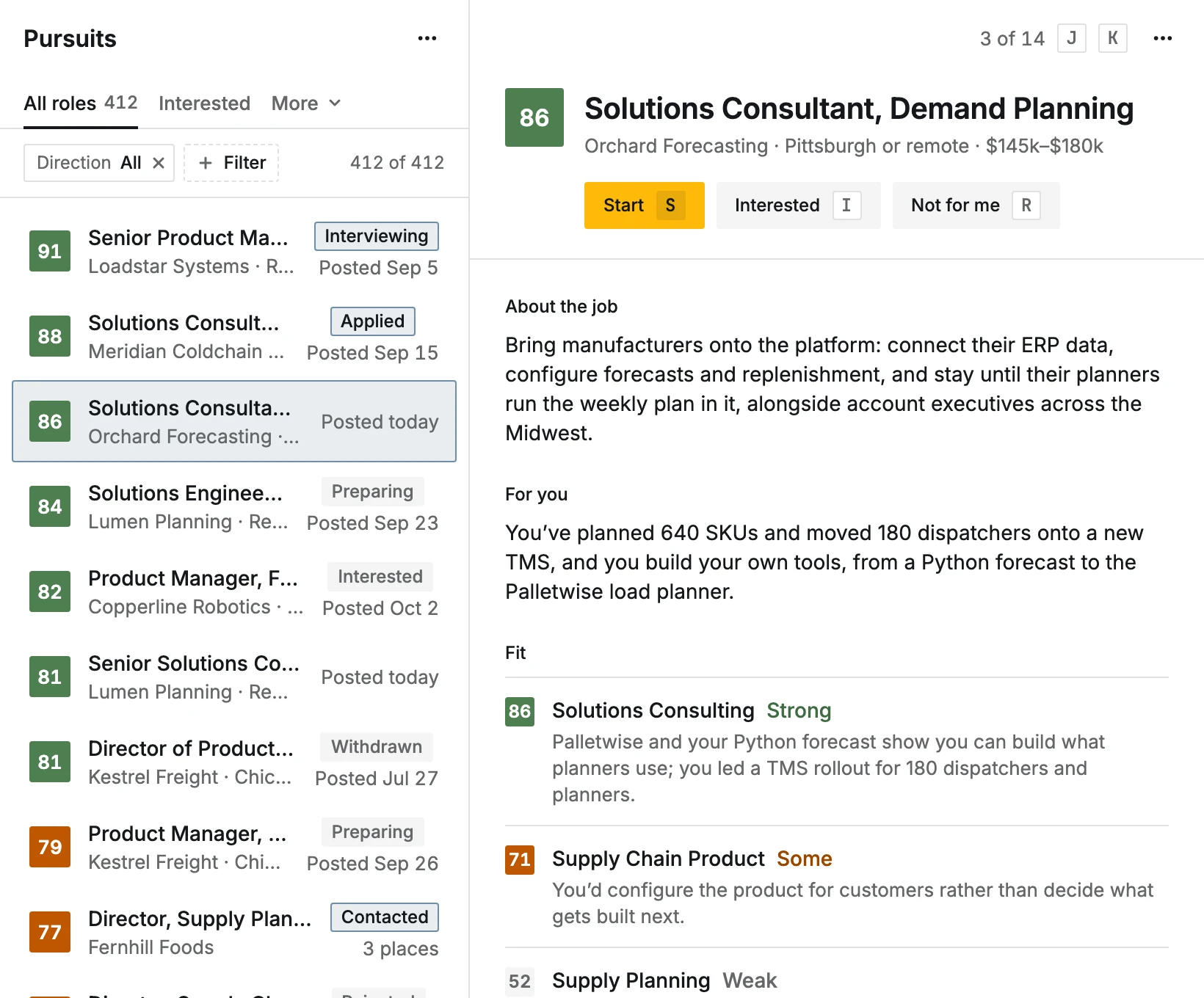
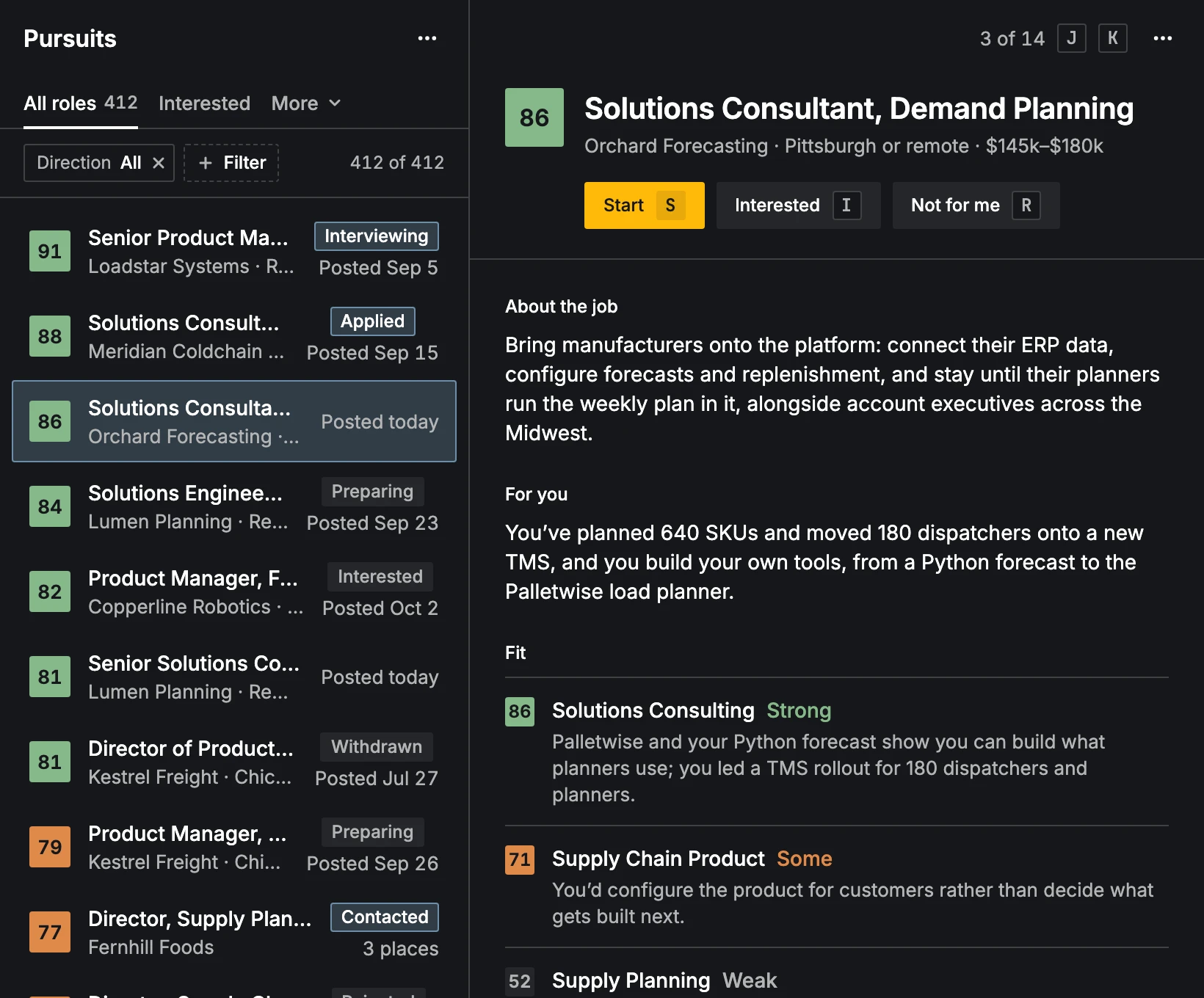
The role's ⋯ menu also has Tailor a resume, Write a letter, Ask about this role, Open the posting (O), Copy link and rating its company.
Work a pursuit
A pursuit shows its Status at the top: Preparing, Contacted, Applied, In conversation, Interviewing, Offer or Closed. Contacted and Applied are one step: a pursuit can be both, and each keeps its own date. Setting Closed asks for the reason (Rejected, Withdrawn, No response or Declined). Undo takes a change back. Reminders due show here with Snooze.
Two paths
There are two ways into a role, and they carry equal weight:
- Apply: send your tailored resume, letter and answers through the posting, then mark it Applied.
- Outreach: write to the people who hire (the hiring manager, someone on the team or a recruiter) with a short outreach message from your record, sent from your own email.
While a pursuit is Preparing and its resume is tailored, the Overview shows both as check boxes. Tick one or both. The choice only changes the next steps CareerBot suggests: Open the posting and Find contacts stay on every pursuit, and an outreach message marked sent or Applied counts on its path whatever you ticked.
A pursuit started with Start outreach on a company has no open role: it's titled with what you're after, says No open role in the list, is on the Outreach path, and has only Overview, Role, People and Notes. Its Role tab shows what the company does and the direction the pursuit is for, and is left out when neither is known.
Its tabs:
- Overview
- The next step (from the path), Outreach and Apply while it's being prepared, the interview date, the follow-up draft when one is due, and the Timeline of everything that happened.
- Role
- The role as it showed before you started it: About the job, For you, the fit for each direction with its stretch, the Full description, your notes on the role, and its Details beside (under it on smaller screens).
- Resume
- The tailored resume. Tailor a resume writes one for this posting from your direction's resume, with Requirements showing how you cover each one. Once you apply, it's Kept as sent.
- Letter
- Write a cover letter from your approved record and the tailored resume. Write it again keeps earlier versions.
- Answers
- Answers to the application's questions you kept from Ask, or added with Add an answer.
- People
- Find contacts at the company (free), in three groups: Hiring manager, Team and Recruiting. A person's ⋯ menu moves them to another group. Add a contact adds someone you know, with the email you type (free). When someone answers, Mark a reply (in their ⋯ menu or under the message) records it and moves the pursuit to In conversation if it's behind. Revealing an email costs 1 Apollo credit. Draft a message writes an outreach message; Copy and open Mail opens it in your email, and you mark it sent. The first one marked sent moves the pursuit to Contacted. While outreach is quiet, the step due leads the tab, and the person it's for is marked Follow up or Next contact.
- Notes
- Your own dated notes.
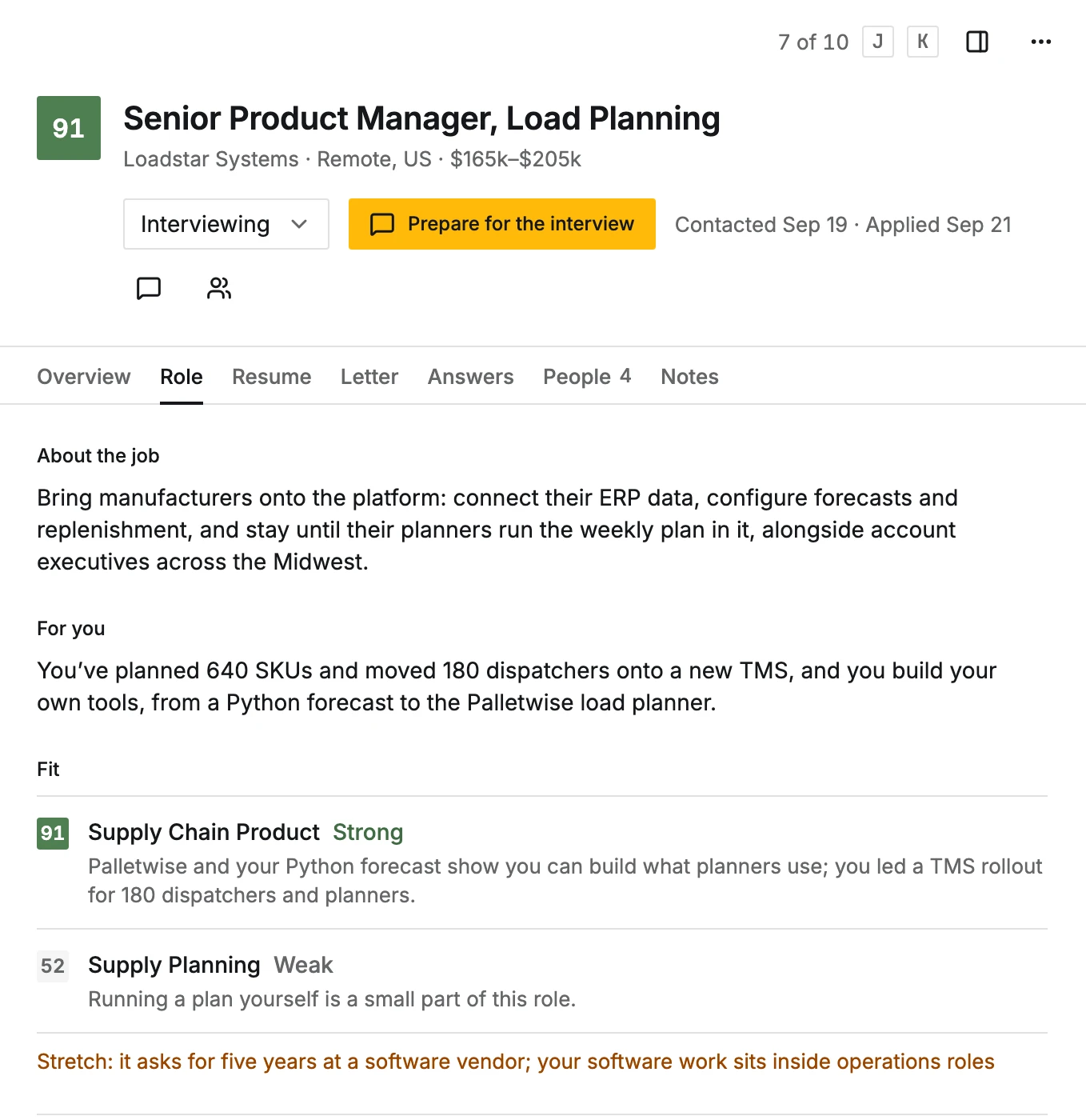
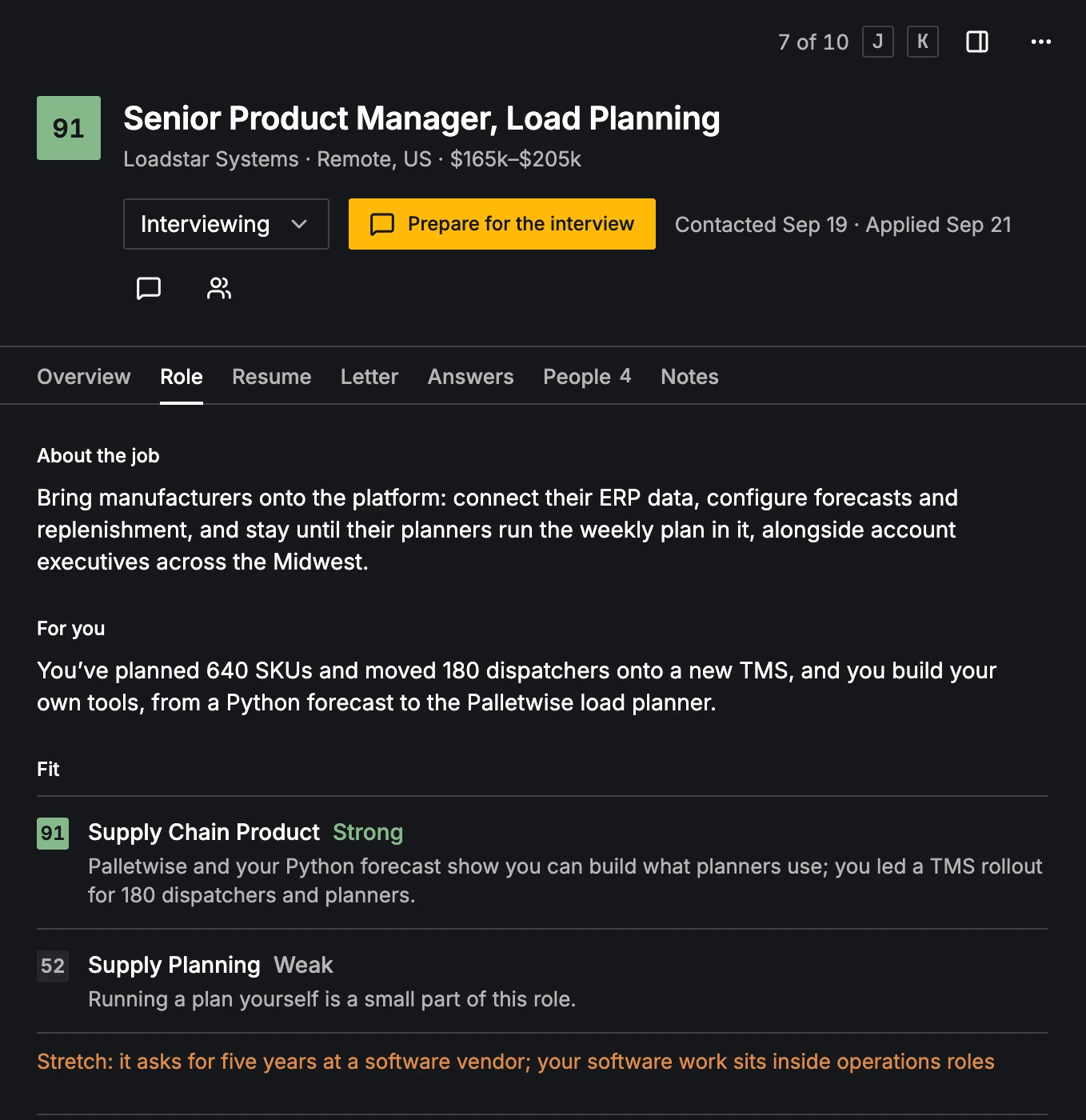
Ask about this role (/) opens beside the pursuit. Paste an application question or ask anything; answers come from your approved record, the resume and the posting. Keep saves an answer to Answers.
Go in and follow up
- 1
Write to someone, apply, or both
On the Outreach path, Find contacts opens People: write to one person and mark the message sent. On the Apply path, Apply opens the posting. Apply there with your tailored resume and letter, then set Status to Applied (Getting started's step has Mark Applied). CareerBot keeps a copy of the resume and letter you sent.
- 2
Follow up
An application with no reply for 7 days brings a reminder, and another at 14 days. An outreach message works one person at a time: 7 days with no reply, Follow up with that person; 7 days after the follow-up, Next contact names the next person in group order you haven't written to. After three people with no reply, it suggests applying, if you haven't, or closing it as No response. A reply from anyone there stops these reminders. Write the follow-up drafts one to the last person you wrote to, Copy and open Mail sends it from your own email, and Mark as sent records it.
The list's ⋯ menu
More for Pursuits holds By direction, Select (on All roles and Interested: checkboxes to mark many roles Interested or Not for me at once, with Not for me with a note in the bar's ⋯; Done or Esc stops), Rank again and Check roles again (each shows its cost first), Count how big a stretch a role is and Reminders.
Sort by sets the order of All roles and Interested (free; change it back any time). Best fit, the default, puts the highest fit score first, roles against a preference after the rest, and the newest first within a score. Newest posted puts the most recently posted roles first, across every role that passes your filters; roles that don't say when they were posted go last and say No posted date. It changes only the order: nothing is ranked again, the count stays the same, and each row shows when it was posted. A Sort chip in the filter bar says so; its × (or Best fit) puts it back. On a phone, Sort by opens in the menu's sheet. Pair it with Posted within to read only the newest roles. X on a role, or ⇧- or ⌘-click, also starts selecting with that role checked (see Selecting several).
Keys
J / K move through the list, Esc closes the open item. On a role: S Start, I Interested, R Not for me, O Open the posting, L Write a letter, / Ask about this role.