Resumes
Your base resume, one per direction, and every tailored one, all written from your approved record, to read, adjust and export.
Address
/resumes
The tour
In ⌘K: Take the tour of Resumes. It lights up each part in turn and never changes anything.
- 01ResumesYour base resume, one for each direction, and those tailored to a posting, all written from your approved record. Open one to read, adjust and export it.
- 02All and To updateAll lists every resume. To update shows those your record has changed under, or with a new version waiting, with Update all to write them again at once.
- 03The listBase, then Directions, then Tailored. Each line shows how it stands and when it was written. J and K move through the list.
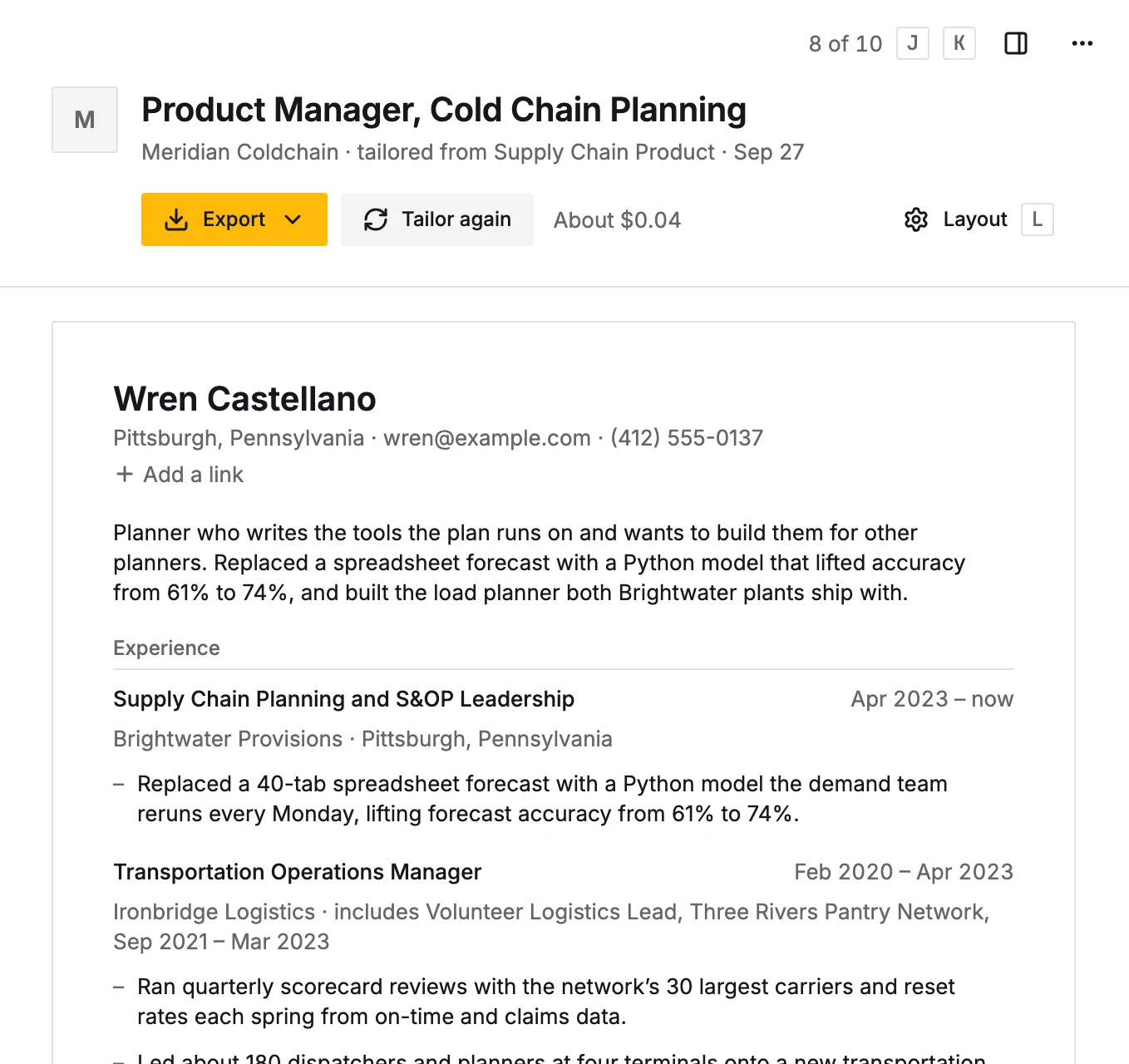
- 04Export, Write again, Layout, HistoryExport downloads it as a PDF or Word file, or copies it for Google Docs or as text. Write again writes a new version at the cost shown, to keep or discard beside this one. Layout (L) sets what shows and how; History (H) lists earlier versions to compare or restore.
- 05The summaryClick the words to put the summary in your own words on this resume. It shows Edited, and Use CareerBot’s puts the original back.
- 06The linesPoint at a line to see what it’s built on, Edit it in your own words, Pin it so it always shows, or Hide it from this resume. Each one undoes with U.
- 07DetailsWhen it was written, what it’s built on, its length and roles, and on a direction resume the resumes tailored from it and Tailor a resume.
- 08NotesYour own notes on this resume, dated. Nothing that writes a resume reads them.
- 09More for ResumesUpdate all, Resumes to update, and this tour again.
Actions
- Connect Google Drive againGoogle stopped accepting CareerBot, so this resume isn’t kept in Drive now. Opens Settings to connect it again.Free
- EditPuts the summary in your own words on this resume. A new version is written with its own summary.Free · Undo with U
- Use CareerBot’sPuts CareerBot’s summary back.Free · Undo with U
- ShowShows it on this resume again.Free
- UndoBrings the line back, to add or skip.Free
- AddAdds this line to the resume. The rest stays as it is.Free · Undo from the line
- SkipLeaves it off. What it’s built on isn’t proposed again for this resume unless you change it.Free
- SaveSaves your words on this resume. Its PDF, Word and Google Doc follow.Free · Undo with U
- Download PDFSaves this resume as shown, as a PDF.Free
- Download WordSaves this resume as shown, as a Word file.Free
- Copy for Google DocsCopies the resume with its headings and bullets, to paste into Google Docs or Word.Free
- Copy plain textCopies the resume as plain text.Free
- Download plain textSaves the resume to a file, as plain text.Free
- RestoreMakes a copy of this version the current one.Free · Undo from the message
- Compare with currentShows this version beside the current one, with what changed.Free
- Don’t foldShows this role on its own again.Free
- Leave this role outTakes this role off. It stays listed here, to show again.Free · Undo from this menu
- Show this rolePuts this role back on.Free
- Type a titleOpens a field to write the title yourself.Free
- Use your record’sDrops this resume’s own setting for this role and uses your record’s.Free · Undo with U
- SaveShows the role under the title you typed.Free · Change it from the same menu
- Compare versionsShows two versions side by side, with what changed.Free
- CompareShows the new version beside this one, with what changed.Free
- Open the pursuitOpens the pursuit for this posting.Free
- Resumes to updateShows the resumes your record has changed under, or with a new version waiting.Free
Every resume is written from your approved record. You never paste one in. You can still change any line in your own words, decide what shows and how, and export it.
The list
Two tabs: All, and To update (resumes your record changed under, or with a new version waiting, with Update all to write them again at once).
The list has three parts:
- Base: the Base resume, a neutral account of your career.
- Directions: a Direction resume for each approved direction, written from your record and the direction's positioning. It can't be written until the positioning is approved.
- Tailored: resumes written for one posting. They're frozen as written; Tailor again writes a new one.
Each row says how it stands (Up to date, Changed since it was written, New version to keep or discard, Not written yet) and when it was written.
Read and adjust a resume
- 1
Open it
The resume shows as a page, with Details beside it: when it was written, how many of your approved facts it Uses (and where the unused ones are), its Length with its line count and about how many pages (it says so when a version runs past the length you chose), its roles, and on a direction resume the resumes tailored from it and Tailor a resume.
- 2
Check a line
Point at a line and open Built on: the line as it reads on this resume, and beside it each fact in your record as written. Rewrite this fact… asks for a new wording of the fact itself with your comment (about $0.01); it keeps every number and comes to Review under Rewrites to use or dismiss. The fact stays as it is until you use it.
- 3
Change a line
A line's ⋯ menu (or a right-click; a long press on a phone) has Edit, which puts it in your own words on this resume only; it shows Edited, and Use CareerBot’s puts the original back. Check against facts (uses your AI budget) marks it Supported or Goes beyond, with the words that go beyond.
- 4
Pin or hide
Pin keeps a line on this resume, including in every new version written after it; Hide takes it off this resume and keeps it off in new versions (hidden lines stay listed, struck through). A new version keeps them by the facts the line rests on, even when its words change. U undoes.
- 5
Move a line
Move up and Move down in a line's ⋯ menu (⌥↑ and ⌥↓, or drag its handle) move it within its role. The order carries into new versions. U undoes.
- 6
Add a line
Under a role with approved facts the resume doesn't use, Add a line lists them. Add as written puts the fact on as it reads in your record, free; Write it for this resume writes one line from it in this resume's voice, at the cost shown. Either shows Added; U or Hide takes it off. When one more line would run past the length, the list says so.
- 7
Edit the summary and contact
Click the summary to put it in your own words. The contact block at the top is edited in place and used on every resume.
Layout, History and Export
- Layout (L): length, voice, titles on resumes, folding a role into the one before or after (keeping its lines or leaving them out), breaks, and which projects and skills show. Applies to sets it for This resume or as the Default for every resume. A role this resume places differently shows This resume (used) beside Your record, with Use your record’s to drop this resume's own setting. The writer leaves out the facts of roles left out or folded with their lines left out, so the space goes to the roles that show.
- Voice (in Layout): Plain says what you did, then what came of it; Confident (the default) opens with what changed because of you. Every level keeps to your record: no claim, number, tool, title or scope it doesn't hold. The default for every resume also sets cover letters and outreach. Changing it is free; base and direction resumes then show they changed since they were written and offer Write again, while tailored resumes stay as written. Example from your record writes one of your facts at each level beside the fact, at the cost shown.
- History (H): every version, what changed in each, the note it was written with (Your note, with Use again on older ones), Compare with current and Restore.
- Export: Download PDF, Download Word, Copy for Google Docs, Copy plain text, and more formats.
New versions
- Write again writes a new version from your approved record, at the cost shown. An optional note, What should change?, steers it (for example "Lead with results"); it never adds anything your record doesn't hold. With no note, the reason you gave for discarding the last new version steers it. You see it beside the current one, then Keep or Discard. The new version keeps your pins, hidden lines and line order, and says so under each one (and in What changed and History) until you keep it. Tailor again and a cover letter's Write again take a note the same way.
- Add what's new writes lines only for facts and projects you added or reworded since. You add or Skip each one; Add all adds the rest.
- When facts a line rests on are edited, rejected or reworded (a rewrite you used), the resume says how many lines rest on changed facts and offers Update lines. You see each new line before anything changes, then Apply or Discard.
If Google Drive is connected, each resume has a Google Doc in your CareerBot folder, updated when you keep a new version. See Settings.